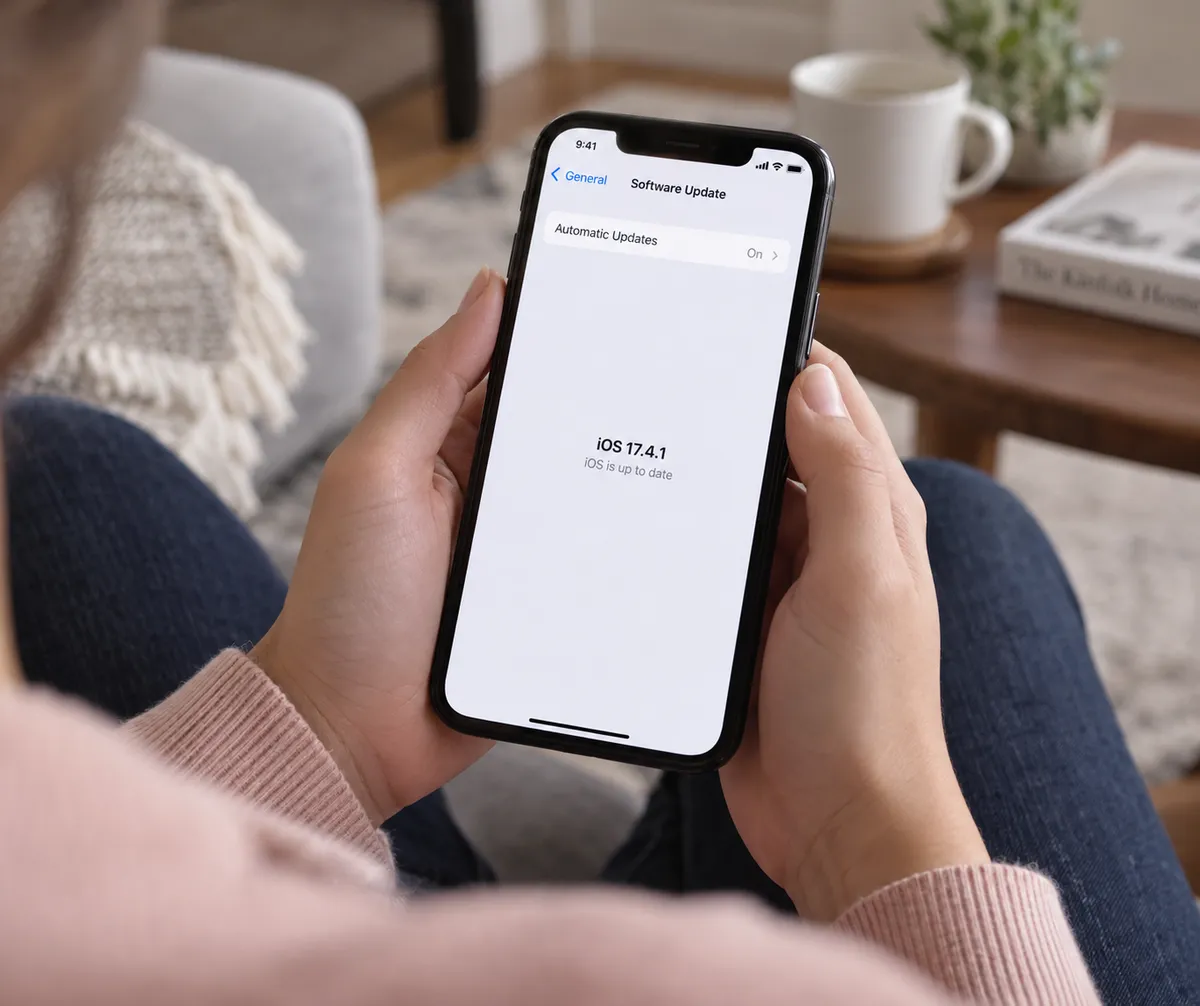
Fox News reports on a newly identified iPhone spyware variant called P7 DarkSword. By the end of this guide, you will know what it can reportedly reach on a phone and the short checklist that puts you on solid footing. The most important item takes about two minutes.
What was reported
Per Fox News, P7 DarkSword can steal saved passwords, photos, Apple Notes and cryptocurrency wallet data. The report says it checks for commands every 15 seconds, which means it keeps reaching out for instructions rather than doing a single smash-and-grab.
The reassuring part: according to the report, updated iPhones are protected against the known DarkSword exploits. Outdated devices may remain at risk. That single detail shapes everything below.
The report also places the discovery within broader concern that mercenary spyware tools are spreading beyond elite targets to wider criminal use. That is context from the coverage, and it is a reason to do basic upkeep rather than a reason to panic.
Step 1: Update iOS first
This is the two-minute fix, and it matters most because the reported protection depends on being current.
- Open Settings.
- Tap General, then Software Update.
- If an update is listed, tap Update Now (or Download and Install) and keep the phone plugged in.
- Back on the Software Update screen, tap Automatic Updates and make sure the update options are switched on.
The exact iOS version number you see will depend on your iPhone model and what Apple has released. Aim for the newest version your phone is offered. If your iPhone is so old that it no longer receives updates, treat it as higher risk, especially if it holds banking apps or crypto wallets.
Step 2: Think about what is on your phone
DarkSword's reported targets show why a phone is such a rich prize: saved credentials, photos, notes and wallet data. Take five minutes to look at what you have stored in each place.
Notes
Apple Notes is on the reported target list. Many people use it as a scratchpad for passwords, recovery phrases, ID numbers and account details. Open Notes, search for words like "password," "PIN," "seed," and "recovery," and move anything sensitive somewhere built for it, such as a dedicated password manager. Then delete the original note, and clear it from Recently Deleted too.
Crypto wallets
If you hold cryptocurrency, never keep a recovery phrase as a note or screenshot on your phone. Write it on paper and store it somewhere physically secure. This is general good practice, and it limits what any phone-based theft could reach.
Photos
Look for screenshots of documents, cards, or codes. Delete the ones you no longer need, and remove them from Recently Deleted as well.
Step 3: Review your saved passwords
Since saved credentials are reportedly in scope, check what you have stored.
- Open Settings and tap Passwords (you will authenticate with Face ID, Touch ID, or your passcode).
- Look for the security recommendations section, which flags reused or weak passwords.
- Change the flagged ones, starting with email, banking, and anything tied to money.
Turn on two-factor authentication for those same accounts. A stolen password is much less useful when a second step stands in the way.
Step 4: Be pickier about links, ads, and apps
The Fox News report as summarized here does not detail how DarkSword reaches a phone, so avoid assuming a specific route. Still, the sensible habits are the same for any mobile attack:
- Don't tap links in unexpected texts, emails, or messaging apps. Type the site address yourself or use your bookmarks.
- Be skeptical of pop-ups and ads that claim your phone is infected or demand an immediate action.
- Install apps only from the App Store, and delete the ones you no longer use.
None of this replaces updating. It just shrinks the number of chances an attacker gets.
Step 5: Lock down the basics
Two quick settings help if a phone is ever lost or someone gets near it.
- Use a six-digit or longer passcode (or an alphanumeric one) under Settings > Face ID & Passcode.
- Confirm Find My iPhone is on, via your name at the top of Settings, then Find My.
These are not DarkSword-specific protections. They are the foundation that makes the rest of the checklist work.
Should you stop keeping things on your iPhone?
No. The reporting says updated iPhones are protected against the known exploits, so the practical lesson is about keeping current and being deliberate. Your phone is a personal vault for passwords, finances and memories, which is exactly why a few minutes of housekeeping pays off. Keep the truly irreplaceable secrets, like crypto recovery phrases, off it entirely.
The one thing to do now
Open Settings > General > Software Update right now, install whatever is waiting, and switch on automatic updates. Everything else on this list is worthwhile, but that step is the one the reported protection hinges on.