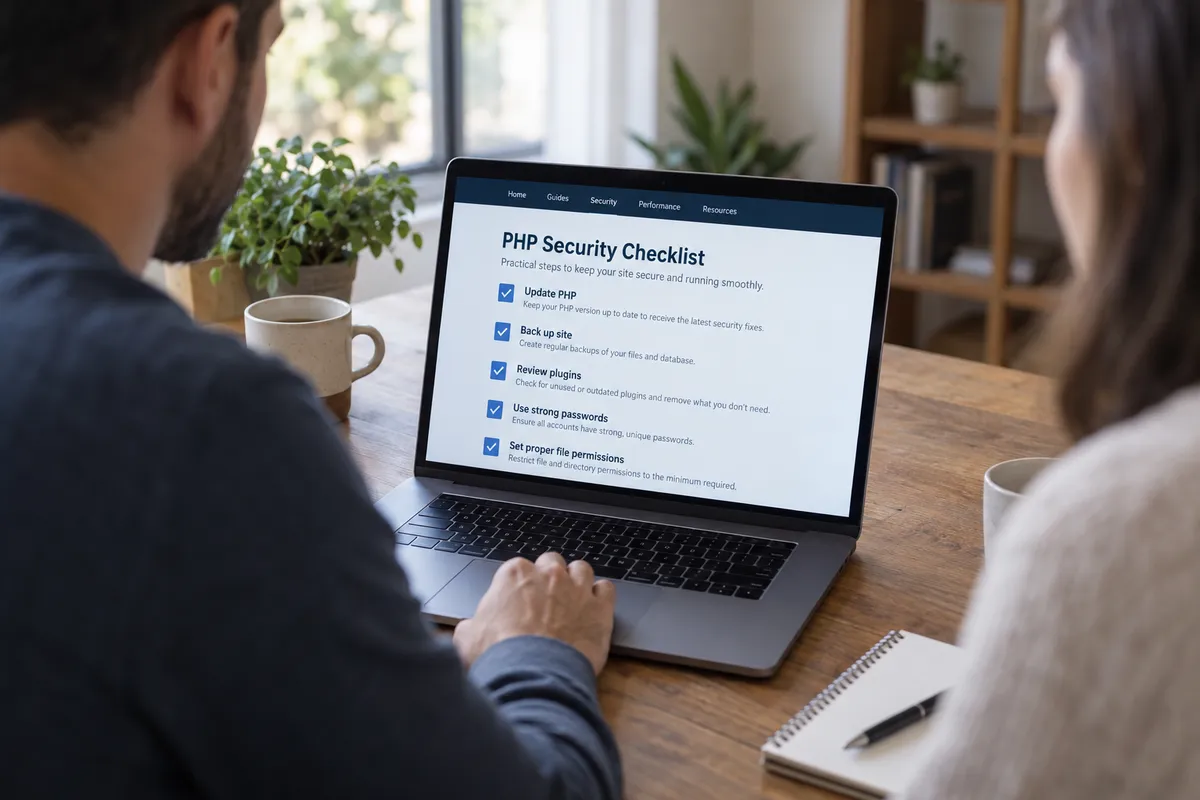
If you run a website, a blog, or an online shop, you may have heard that critical flaws in PHP are causing a scramble among governments and companies. This guide explains what PHP is, why the warning matters, and the steps you can take today to check your own exposure.
What's happening
Per the BBC, the UK government is working to identify its exposure after a global cyber-security warning about critical PHP vulnerabilities. Governments and companies are rushing to protect their websites. The BBC also reports that Amazon says it experienced attacks before the warning was made public.
The reporting highlights three details. AI helped uncover the flaws. Details leaked early. Attackers moved quickly to exploit the weaknesses. I don't have the technical specifics, such as exact flaw names or patched version numbers, so this guide points you to your own host and software vendors for those.
What PHP is, in plain English
PHP is a programming language that runs on web servers. It works behind the scenes to build the pages you see. You never install it on your phone or laptop, but a large part of the web depends on it. The BBC's coverage notes it underpins platforms like WordPress, Wikipedia, and online shops.
That is why a flaw here gets attention. If your site runs on WordPress or a similar shop or content system, PHP is probably running underneath it, even if you have never touched it.
Step 1: Find out whether your site uses PHP
You don't need technical skills for this.
- Check your platform. If you built the site with WordPress, you almost certainly use PHP. Hosted builders that manage everything for you handle the server side themselves (see Step 4).
- Look at your hosting dashboard. Log in to your host (the company you pay for your site). Many dashboards have a section called "PHP," "Software," or "Server settings" that shows your PHP version.
- Ask support if you can't find it. A short message works: "Which PHP version is my site running, and have you applied the latest security updates?"
Write down the version number you find. You will want it when you compare notes with your host.
Step 2: Update PHP through your host
On most shared hosting, you can switch PHP versions from the dashboard, usually with a dropdown menu. Fixes for security problems generally arrive as updated versions, so the goal is to be on the newest release your host supports and your site can run.
Before you change anything:
- Make a backup first. Most hosts offer one-click backups. Use it.
- Change one thing at a time. Update PHP, then load your site and click through a few pages.
- Roll back if something breaks. If a page errors out after the update, switch back and contact your theme or plugin developer.
If you pay for managed hosting, your provider may handle this for you. Confirm it rather than assume.
Step 3: Update your site software, themes, and plugins
If you use WordPress, keep the core software, every theme, and every plugin current. Outdated add-ons are a common route for attackers, and they can leave you stuck on old PHP versions.
- Log in to your WordPress dashboard.
- Open Dashboard > Updates.
- Install available updates for core, plugins, and themes.
- Delete any plugin or theme you no longer use. Deactivated is not the same as removed.
Step 4: Know who is responsible for your server
Who patches the server depends on how you host:
- Fully hosted website builders: The provider manages the server. Check its status page or announcements for security notices.
- Managed WordPress hosting: The host usually handles server-level updates. Ask them to confirm.
- Shared hosting: You can often choose your PHP version, but the host controls the rest.
- Your own server (VPS or similar): The patching is on you. Apply updates from your operating system's package manager, or ask whoever set it up.
Step 5: Tighten the basics while you're in there
The BBC reports attackers moved quickly. Speed is the reason to cover the basics now rather than later.
- Use strong, unique passwords for your host, your site admin, and your email.
- Turn on two-factor authentication wherever your host and site offer it.
- Remove old admin accounts for people who no longer work on the site.
- Confirm automatic backups are running and that you can find a recent copy.
Step 6: Watch for signs of trouble
I can't tell you exactly what an attack on these specific flaws looks like. General warning signs on any site include:
- Pages you didn't create, or content that changed on its own
- Visitors being redirected to unfamiliar sites
- Your host emailing about unusual activity or suspended service
- Admin users you don't recognize
If you see any of these, contact your host right away, change your passwords, and restore from a clean backup.
Why AI matters to this story
The BBC's reporting says AI helped uncover these flaws, and the story arrives amid growing concern that AI is speeding up both the discovery of vulnerabilities and the pace of attacks. My read: the gap between a flaw becoming known and someone exploiting it may keep shrinking. That makes slow, occasional maintenance riskier than a quick routine.
Set a routine, not a panic
You don't have to understand every technical detail. Today, log in to your host, note your PHP version, take a backup, and ask support whether the latest security fixes are applied. Then put a monthly reminder in your calendar to repeat the check.