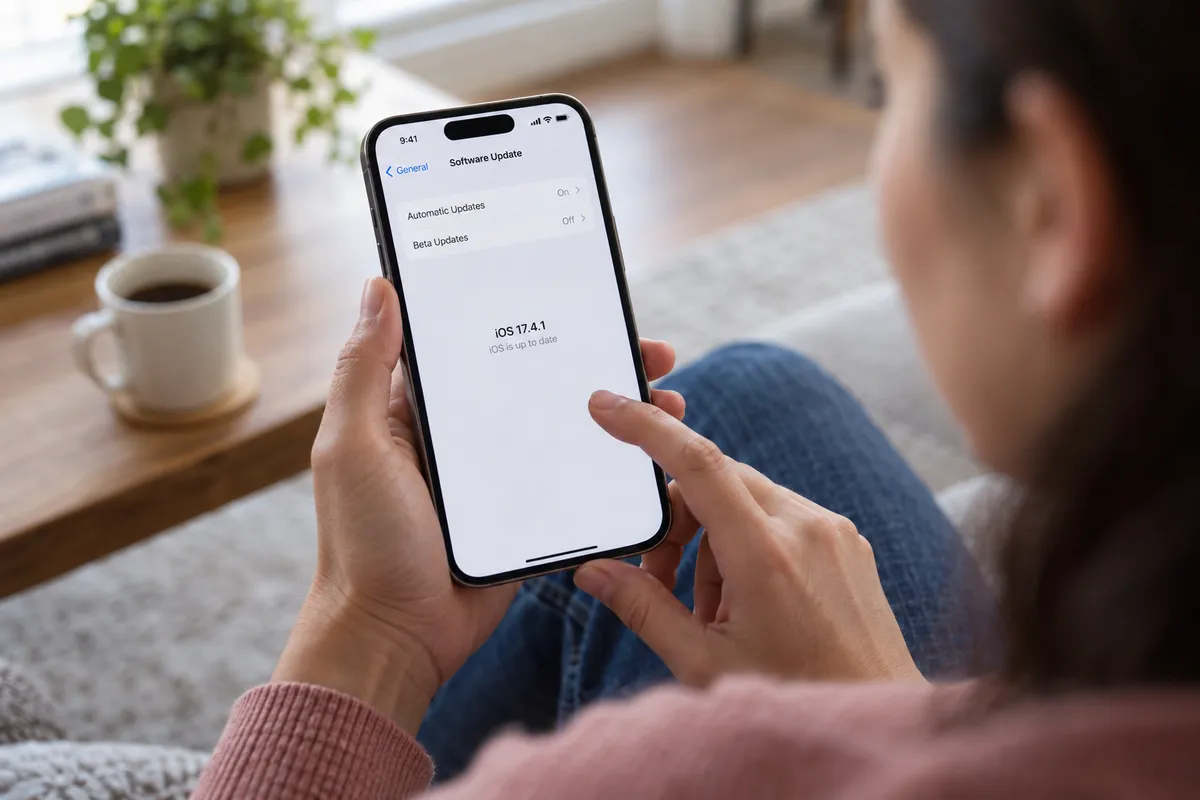
A newly identified iPhone spyware variant called P7 DarkSword can steal saved passwords, photos, Apple Notes and cryptocurrency wallet data, according to a Fox News report. The good news: per that report, iPhones that are up to date are protected against the known DarkSword exploits. Older, unpatched devices may still be at risk.
So this isn't a reason to panic. It's a reason to spend ten minutes on a checklist. Below, you'll find what this spyware reportedly goes after and the steps to take today to close the gap.
What P7 DarkSword reportedly targets
Per Fox News, DarkSword can go after:
- Saved passwords and credentials
- Photos
- Apple Notes
- Cryptocurrency wallet data
The report also says it checks for commands every 15 seconds. In plain terms, that means the malware regularly phones home to see what its operator wants it to do next. That detail is a reminder that spyware isn't a one-time smash-and-grab; it can sit and wait for instructions.
That list reads like a description of a modern iPhone: a vault for logins, memories, private notes and money. The concern, per the report, is that mercenary spyware tools are spreading beyond elite targets to broader criminal use.
Step 1: Update iOS first
This is the single most important move, because the reported protection against known DarkSword exploits comes from being current.
- Open Settings.
- Tap General, then Software Update.
- If an update is listed, tap Update Now (plug in and connect to Wi-Fi first).
- Return to the Software Update screen and tap Automatic Updates. Turn on Download iOS Updates and Install iOS Updates.
Automatic updates mean you don't have to remember. Security fixes only help once they're installed.
Step 2: Check whether your iPhone still gets updates
If Software Update shows no newer version and your iPhone is several years old, check Apple's support pages for whether your model supports the latest iOS. Fox News warns outdated devices may remain at risk. If your phone can no longer receive updates, treat it as a weaker place to keep sensitive data, and consider replacing it when you can.
To see where you stand, go to Settings > General > About and look at Model Name and iOS Version.
Step 3: Review what's stored in Notes
Apple Notes is on the reported target list, and many people use it as an unofficial password file. Open Notes and search for words like "password," "PIN," "login," and "seed." Anything you find that shouldn't be sitting in plain text is worth moving.
- Move passwords into a dedicated password manager, or the built-in Passwords app on recent iOS versions.
- Delete the note afterward, then also clear it from Recently Deleted.
Step 4: Rethink crypto wallet storage
Since wallet data is among the reported targets, don't leave recovery phrases in photos, notes or screenshots on your phone. If you hold meaningful crypto, consider keeping a recovery phrase written offline in a safe place. Check your wallet app for the latest updates too, via the App Store Updates list.
Step 5: Clean up your photo library
Photos are also on the list. Scroll through for screenshots of IDs, bank details, passport scans, or login codes. Move what you need to keep to a more protected location, and delete the rest. Remember to empty Recently Deleted in the Photos app.
Step 6: Tighten everyday habits
The report details on exactly how DarkSword reaches phones are limited, so there's no honest way to give a precise "avoid X" rule. General hygiene still helps:
- Don't tap links from unexpected texts, emails or ads.
- Install apps only from the App Store.
- Delete apps you no longer use.
- Use a strong passcode and enable Face ID or Touch ID.
- Turn on two-factor authentication for important accounts, so a stolen password alone isn't enough.
Step 7: Change passwords if something feels off
If your phone has been running unusually hot, draining quickly, or you've seen account activity you don't recognize, change your key passwords (email, Apple Account, banking) from a different, updated device. Then update your iPhone. This isn't a confirmed DarkSword symptom; it's a sensible precaution for any suspected compromise.
Should you stop keeping sensitive things on your iPhone?
Not necessarily. An updated iPhone is reportedly protected against the known DarkSword exploits, and spreading data around creates its own risks. But it's smart to be selective: keep the truly sensitive items (recovery phrases, scans of identity documents) in as few places as possible, and well protected.
The one thing to do right now
Open Settings > General > Software Update, install anything pending, and switch on automatic updates. Everything else on this list helps, but that one step is what Fox News's report points to as the protection.