You don't need to be a security professional to get value from vulnerability data. A free dashboard and ten minutes a week can tell you when to pay closer attention to updates on your own devices and apps.
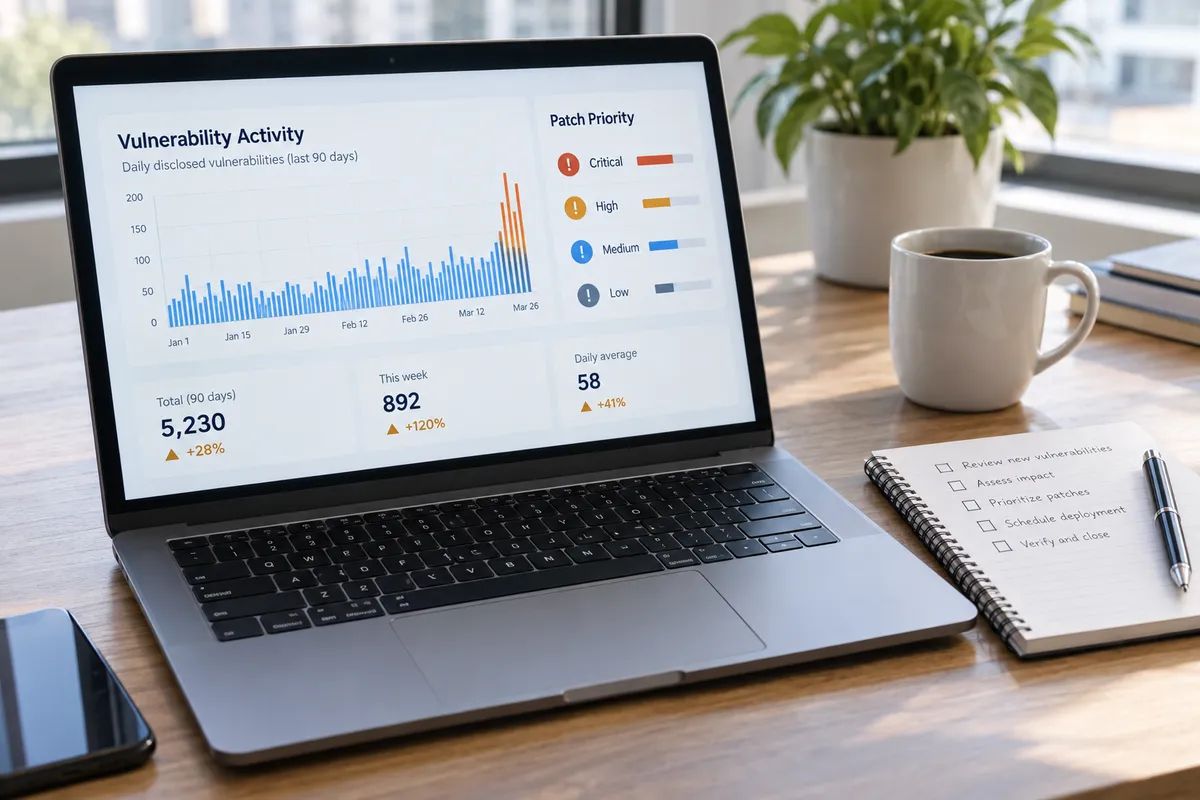
This week, a project called CVE Tracker from 0xosprey reached the Hacker News front page. Per its page, it's a dashboard for monitoring vulnerability activity over time, with controls for resolution, date range, view, and mode. The current view shows daily CVE activity across the last 90 days. This guide uses that kind of view as a model for reading trend data and turning it into a patching habit.
I can only describe what the dashboard's page says it shows. I haven't got its underlying numbers, so nothing below cites specific counts. The method is what matters, and it works with any tracker.
First, what a CVE is
A CVE (Common Vulnerabilities and Exposures) entry is a public identifier for a known security flaw in a piece of software or hardware. A tracker counts how many of these are recorded and plots them over time. Think of it as a weather chart for software problems: it doesn't say your house will flood, but it tells you what the sky is doing.
Step 1: Pick the right window and resolution
The dashboard's controls for date range and resolution decide what story you see. Here's how to use them:
- Start with 90 days. That's the view the tracker opens on. It's long enough to show a pattern and short enough to stay relevant to the software you run now.
- Use the daily resolution first. Daily bars show individual spikes. Weekly or monthly views smooth them out, which is useful later for a big-picture check.
- Change one control at a time. If you switch range, resolution, and mode together, you won't know which change altered the picture.
Step 2: Read the shape, not the numbers
You don't need to memorize totals. Look at the shape of the chart.
A steady baseline
Most days will sit around a typical level. That's your normal. Treat it as background noise: keep automatic updates on and don't panic.
A sudden spike
A tall bar means unusually many entries were published that day. A spike can signal several things, and the chart alone can't tell you which. It could be a batch of disclosures from one vendor, a research effort, or a widely used component with many findings at once. The useful move is to treat a spike as a prompt to check, not a verdict.
A rising trend
If the baseline creeps up across weeks, more flaws are being recorded overall. That's a reason to tighten your routine, such as checking for updates weekly instead of monthly.
Step 3: Turn a spike into a short checklist
When you notice something unusual, run this five-minute check on your own gear:
- Open your update settings. On a phone, check the system update page in Settings. On a computer, check the operating system's update tool.
- Update your browser. It's the app that touches the most untrusted content every day.
- Update your router and smart home hubs. These are often forgotten. Look in the manufacturer's app for a firmware update option.
- Update apps you use for work or money. Banking, email, password managers, and file-sharing tools come first.
- Restart. Many updates don't finish until you do.
This order puts the most exposed software first. It's my own rule of thumb, not something the tracker prescribes.
Step 4: Rank what you patch
A tracker shows volume. It doesn't know what you own. Make a short list of the software you actually depend on, then sort it:
- Internet-facing first: browsers, email, routers, anything reachable from outside your home or office.
- Sensitive data second: password managers, financial apps, cloud storage.
- Everything else third: hobby apps and rarely used tools.
If you run a small business or manage a team, add a fourth bucket for shared tools such as file servers, collaboration platforms, and customer-facing websites. Assign a name to each one so that someone is responsible.
Step 5: Why non-security people should glance at this data
Developers can see whether the libraries they depend on appear in busy periods. Business owners can use a rising trend as justification for a patching budget or a scheduled maintenance window. Everyday users get an early nudge to stop dismissing the update notification. Nobody needs to read every entry. Checking the chart once a week is enough to stay informed.
Know the limits
A few cautions keep you from over-reading a chart:
- Volume isn't severity. Many low-impact entries can look more dramatic than one serious flaw. If a specific vulnerability affects software you use, read the details for that entry.
- Counts reflect publication, not attacks. A tall bar tells you entries were recorded, not that anyone was exploited.
- One dashboard is one view. Pair it with your vendors' own security notices for the products you own.
A simple weekly routine
Pick a day, open the tracker's 90-day daily view, and glance at the last week against the baseline. If nothing stands out, run your normal updates and move on. If a spike appears, run the five-minute checklist above. Put it in your calendar as a recurring 10-minute task, and the next time a headline about a vulnerability appears, you'll already have done the work.