A new Government Accountability Office (GAO) report found that 17 of 22 major civilian federal agencies have not fully met cybersecurity planning guidance for zero trust, according to Fox News. The watchdog issued 40 recommendations, and agencies flagged include HHS, Commerce, DHS, DOJ, State and Treasury. Per the report coverage, the gaps raise the risk of cyberattacks and operational disruptions.
You can't fix a federal agency's network. But zero trust is an idea you can use at home, and by the end of this article you'll have a short checklist to apply it to your phone, computer and accounts.
What the report says
Per Fox News, federal agencies have been under orders to adopt zero trust since 2021. The GAO found that, years later, most of the 22 agencies reviewed have not fully addressed the planning guidance. The coverage notes that government systems face persistent threats from hackers and foreign adversaries, and that gaps could affect public services, sensitive data and national security.
The coverage we're drawing on doesn't detail each agency's specific shortfalls, so we won't guess at them. The takeaway is simpler: even organizations with a mandate and a deadline find this hard.
Zero trust in plain English
Traditional security works like a castle: a strong wall, and anyone inside is trusted. The weakness is obvious. If someone gets past the wall, or steals a key, they can wander freely.
Zero trust drops the idea of a trusted "inside." Every person, device and app has to prove itself each time it asks for something, and gets only the access it needs. Think of a hotel key card that opens your room and the gym, not every door in the building.
Apply zero trust to your own devices
These steps work on any recent iPhone, Android phone, Windows PC or Mac. Menu names vary slightly by version, so use your device's settings search if you can't find an option.
1. Verify every login with more than a password
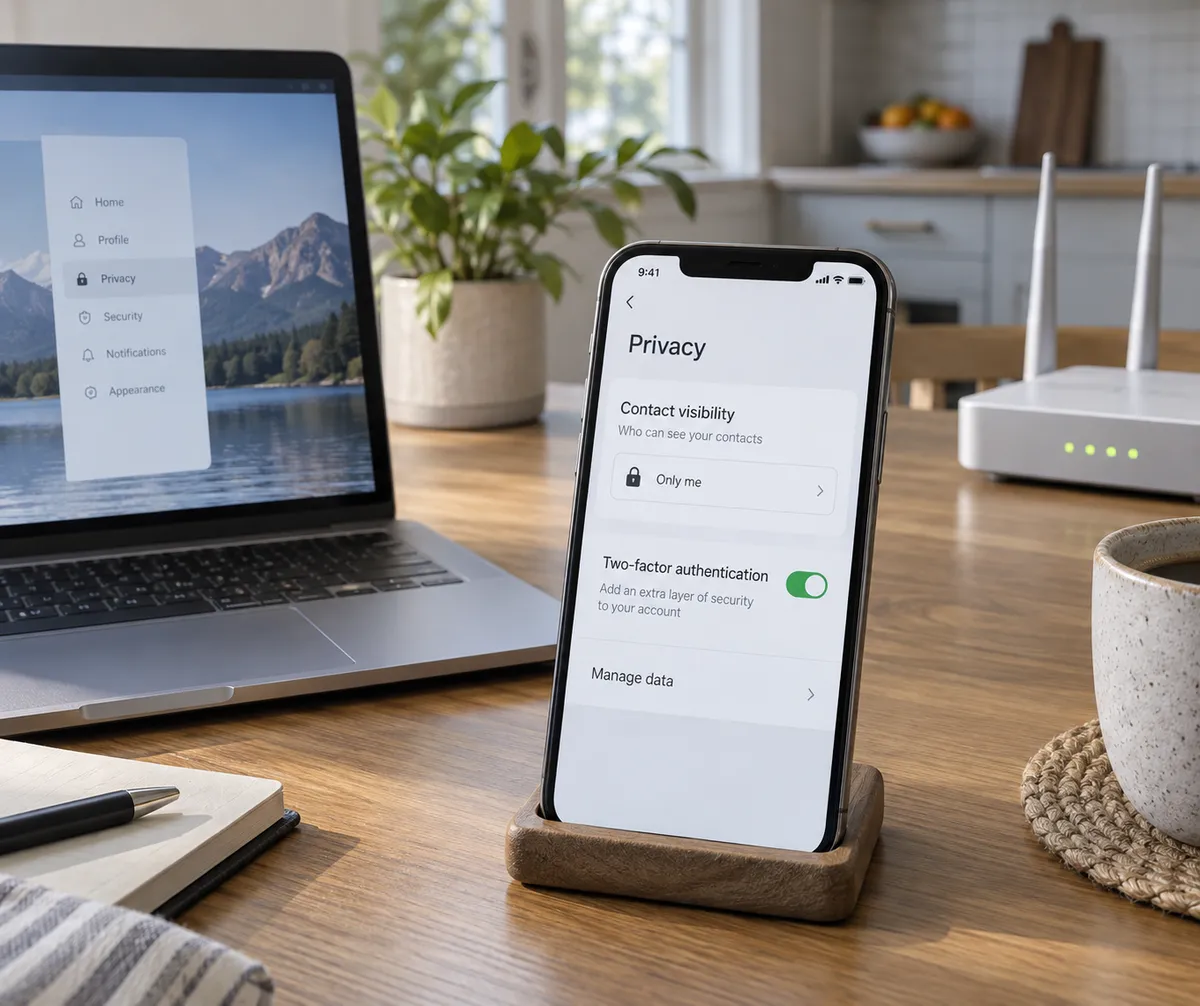
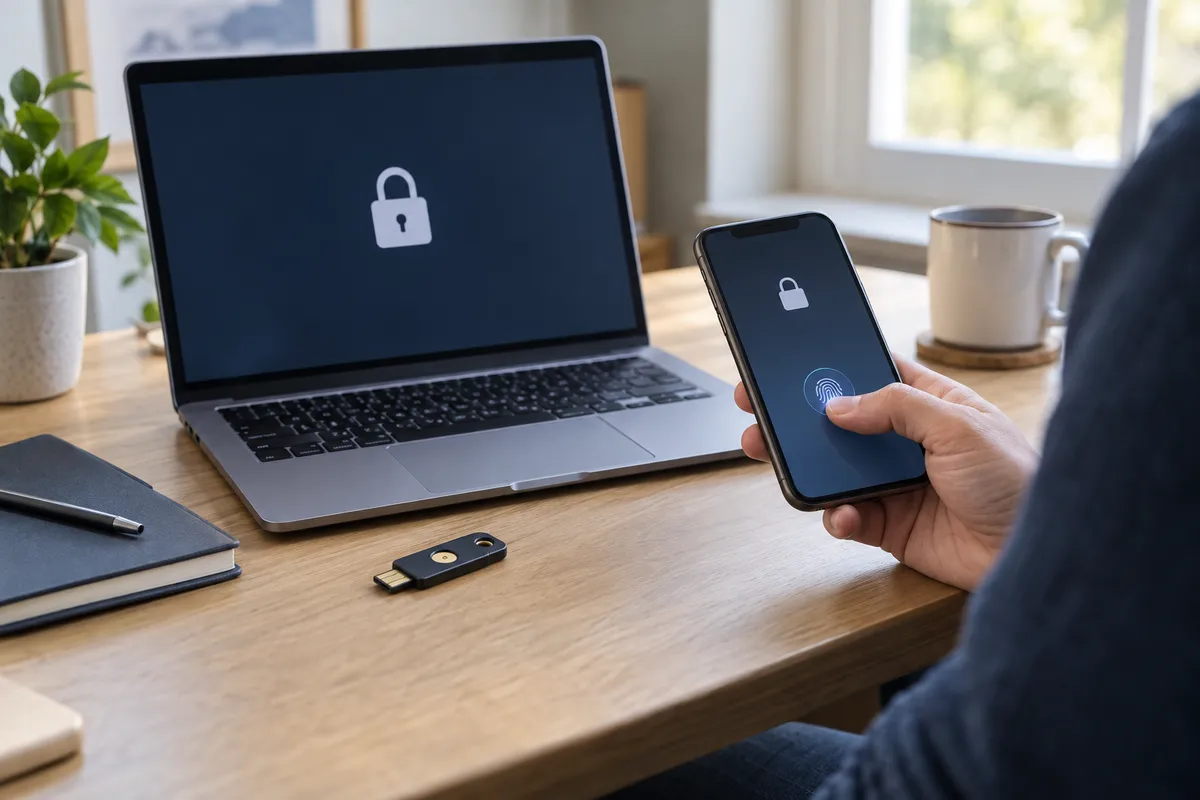
Turn on two-step verification for email, banking, cloud storage and social accounts. Prefer an authenticator app or a passkey over text-message codes where the service offers it. Start with your email, since it can reset everything else.
2. Give each app only the access it needs
- iPhone: Settings > Privacy & Security. Review Location, Photos, Contacts and Microphone.
- Android: Settings > Security & privacy > Privacy > Permission manager.
If a flashlight or game app wants your contacts, switch it to "Never" or "While using."
3. Don't treat your home network as automatically safe
A home Wi-Fi network is not a trusted zone. Change the router's default admin password, install router firmware updates, and move smart-home gadgets to a guest network if your router offers one. That way a cheap smart plug can't reach your laptop.
4. Keep devices updated
A device that proves itself should also be current. Turn on automatic updates for your operating system and apps. Unpatched software is one of the easiest ways in.
5. Use a different password everywhere
One reused password makes every account behind it equally vulnerable. A password manager (built into iPhone, Android, Chrome and Safari, or a standalone one) creates and fills unique passwords so you don't have to remember them.
6. Review who's signed in
Once a quarter, check the "devices" or "recent activity" page in your Google, Apple and other key accounts. Sign out anything you don't recognize and revoke old third-party app connections.
Why slow progress is understandable but still risky
Zero trust isn't a product you install. It's a long list of changes to how accounts, devices and permissions are managed, which is why a large organization can stay stuck in planning. That's our reading of why the effort drags, not a finding from the report.
Your version is far smaller. The steps above take an afternoon, not years.
Do this today
Open your email account and turn on two-step verification. It's the single change that most reduces what a stolen password can do, and it's the zero trust idea in one move: don't trust the password alone.